 Pedro Queiroz
01Context and problem
To save a game moment after it happens, you need a recorder that is always on in the background. The well-known options are complete but heavy or tied to an ecosystem (OBS, ShadowPlay). The idea was a recorder that does only this, does it well and stays out of the game's way.
02Goal
- Record the screen and keep a continuous replay of the last seconds, saving the clip with a hotkey.
- Use as little CPU and memory as possible, both idle and while capturing.
- Never lose a recording if the app crashes.
03Solution
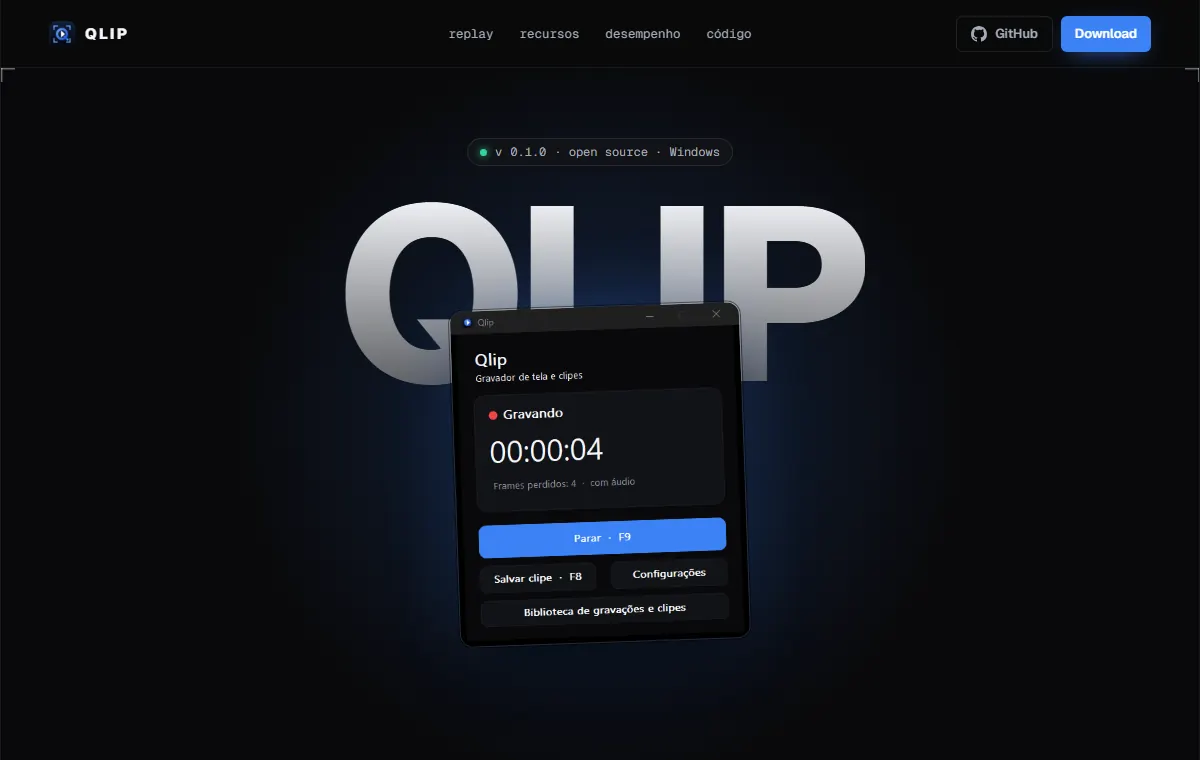
A native C++20 executable with no main window: Qlip lives in the tray and opens a panel on top of the game (Alt+P). Capture uses Windows Graphics Capture, H.264 encoding runs on the GPU through NVENC, and system and microphone audio are mixed into AAC. MP4 muxing uses FFmpeg (LGPL build, shipped as DLLs).
04My role
A personal project I built: the architecture of the capture, encoding, replay and recording modules, the Win32 interface, the installer (Inno Setup), the product website and the performance tests documented in the repository.
05Technologies and architecture
The code is split by responsibility in src/: capture, audio, encoder, replay, recording, config and ui. Video and audio share the same clock (QPC) to stay in sync.
06Key features
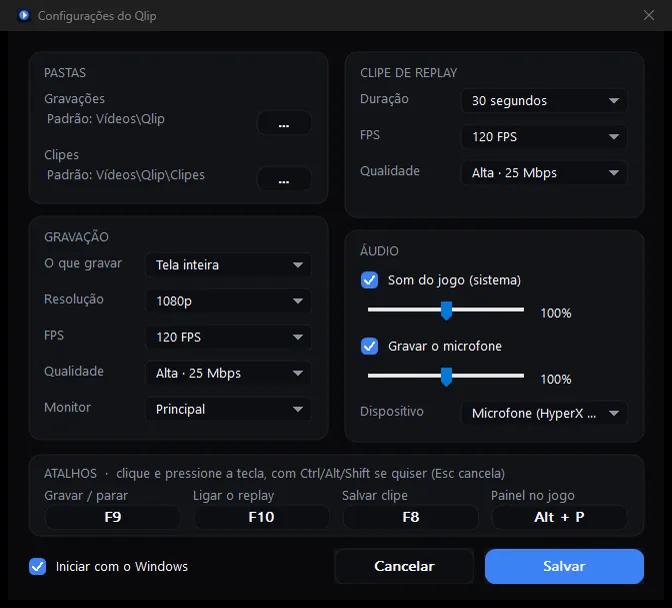
- Continuous recording (F9): full screen or just the game, at 30/60/120 fps, with configurable resolution and quality.
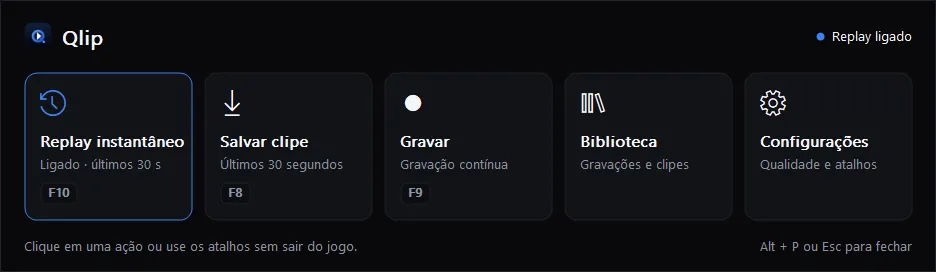
- Instant replay (F10/F8): keeps the last 15 to 120 seconds and saves the clip as MP4, working alongside recording.
- Audio: system sound and microphone with separate volumes; if a device is disconnected, capture reconnects on its own.
- In-game panel (Alt+P): opens on top of the game, dims only that monitor, returns focus when closed and never shows up in recordings.
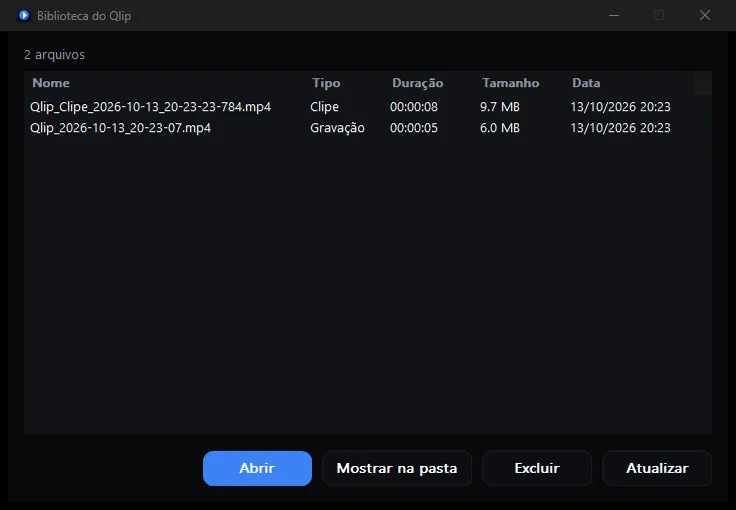
- Library and settings: list of recordings and clips, customizable hotkeys and start with Windows.
07Technical challenges and solutions
Keeping minutes of video in memory without blowing up RAM
Solution: the replay buffer stores already-encoded packets, never raw frames. When saving, the clip starts at a keyframe so it plays without re-encoding.
Keeping audio and video in sync for hours
Solution: each audio source is recorded as a continuous stream and all of them use the video clock. The clock only corrects device drift, one sample at a time; when a device disappears, the gap becomes silence instead of shifting the audio.
Never losing a recording in a crash
Solution: recordings are written as a temporary fragmented MP4 and recovered on the next launch, losing at most the last fragment (about 1 s). In three crashes triggered at different moments, all three files were recovered without errors.
Understanding where memory use came from
Solution: I measured the process while capturing and compared it with ffmpeg.exe using the same DLLs. About 220 MB come from the driver's NVENC session (346 MB with h264_nvenc versus 124 MB with a software encoder), and reducing NVENC surfaces did not change it. The conclusion is documented as a known limitation.
Measurements published in the README (i7-10700F, RTX 2060, 1080p60 test pattern, not a real game): idle, 21.9 MB of RAM and 0% CPU; recording, 2.7% CPU and 11% NVENC; a 10-minute recording with 0.05% dropped frames. Untested items, such as the impact on game FPS and the microphone, are marked as such.
08Screenshots
Interface in Portuguese.
09Lessons learned and next steps
Qlip involved low-level Windows APIs, hardware video encoding and media synchronization, areas where measuring before concluding makes a difference. The numbers and limitations are in the README, including what has not been tested.
Known limitations and next steps
- Requires an NVIDIA GPU with NVENC; starting without a compatible GPU has not been tested yet.
- Recording and replay together open two NVENC sessions (about 2× the memory).
- The panel does not open over exclusive fullscreen games; it works in borderless fullscreen.
- Test FPS impact and audio device switching with real games.
- Code-sign the installer and the executable.